
A couple of years ago we developed a form on the website using Simfatic Forms to record maintenance items discovered on the module at work session or shows. Those reports are e-mailed and logged in a database on our website.
The admin form page created by the program and publishing is to get to so its embedded as an iframe for ease of access. Note the entries in the database are read-only. You can only modify the train club events at the bottom of the form shown in the iframe.
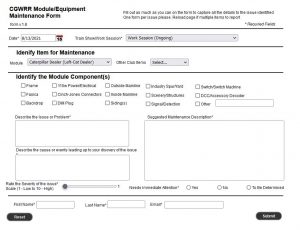
Members can enter items they discover themselves by using this link https://tinyurl.com/ModuleMain
Instructions
Admin Form login
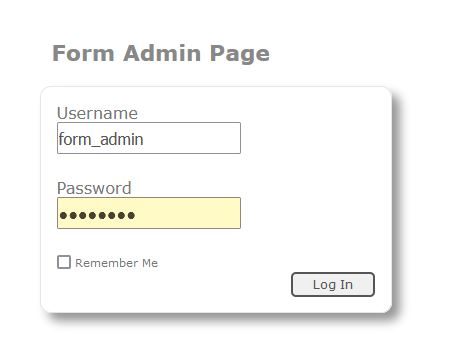
CGWRR Form Maintenance form login
First log into the Admin form page in the iframe below. If you have logged in before and checked the remember me checkbox you might not have to login
Main view
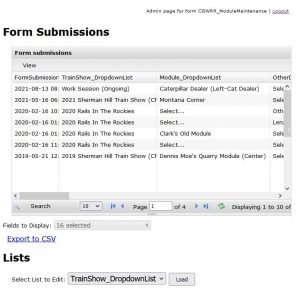
Main view of the Admin form page.
Once logged in you’ll see the main admin form view. The top table shows all the entries submitted. The lower portion is where you can admin the drop-down lists used by the form
Detailed entry view
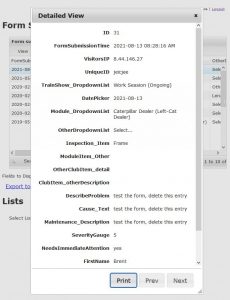
Detailed view from submitted entries
Export entries
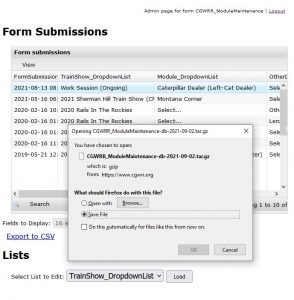
Selecting export gives you the option to save the form submission table
It not likely that you need to export the table, but that option is there if you want to take the data say into a spreadsheet. Its important to note that the export file is a compressed tar.az file so you might need to download an extraction tool that supports opening that format compression file.
Modifiying the List drop down for the form
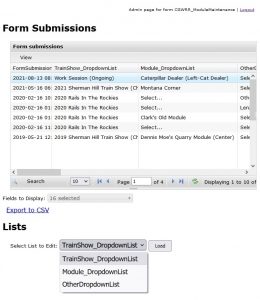
The main database view with options to modify the drop-down list
The main Modifying the List drop down for the form
- Trains Shows
- Modules
- Other Items
To modify one of the three list select one from the drop-down and then select the load button to the right of the drop-down.
Once the list loads you can add an entry per line (note do not use “ or , in the entries for some reason entry will not display correctly in the drop-down element of the form)
When done make sure to select the Update button to upload your changes
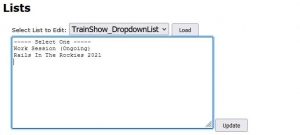
To modify a drop-down and select load, once you modify the list make sure to hit the Update button